
Closeout Compass · The owner story
Own the Building, Not a Box of Binders.
When your contractor closes out the job, everything they owe you lands in one live portal: closeout documents you can actually find, every warranty with its clock running, and one place to file a claim the day something leaks. It stays with the building long after the crews are gone.
For building owners and the facility teams and tenants they let in.
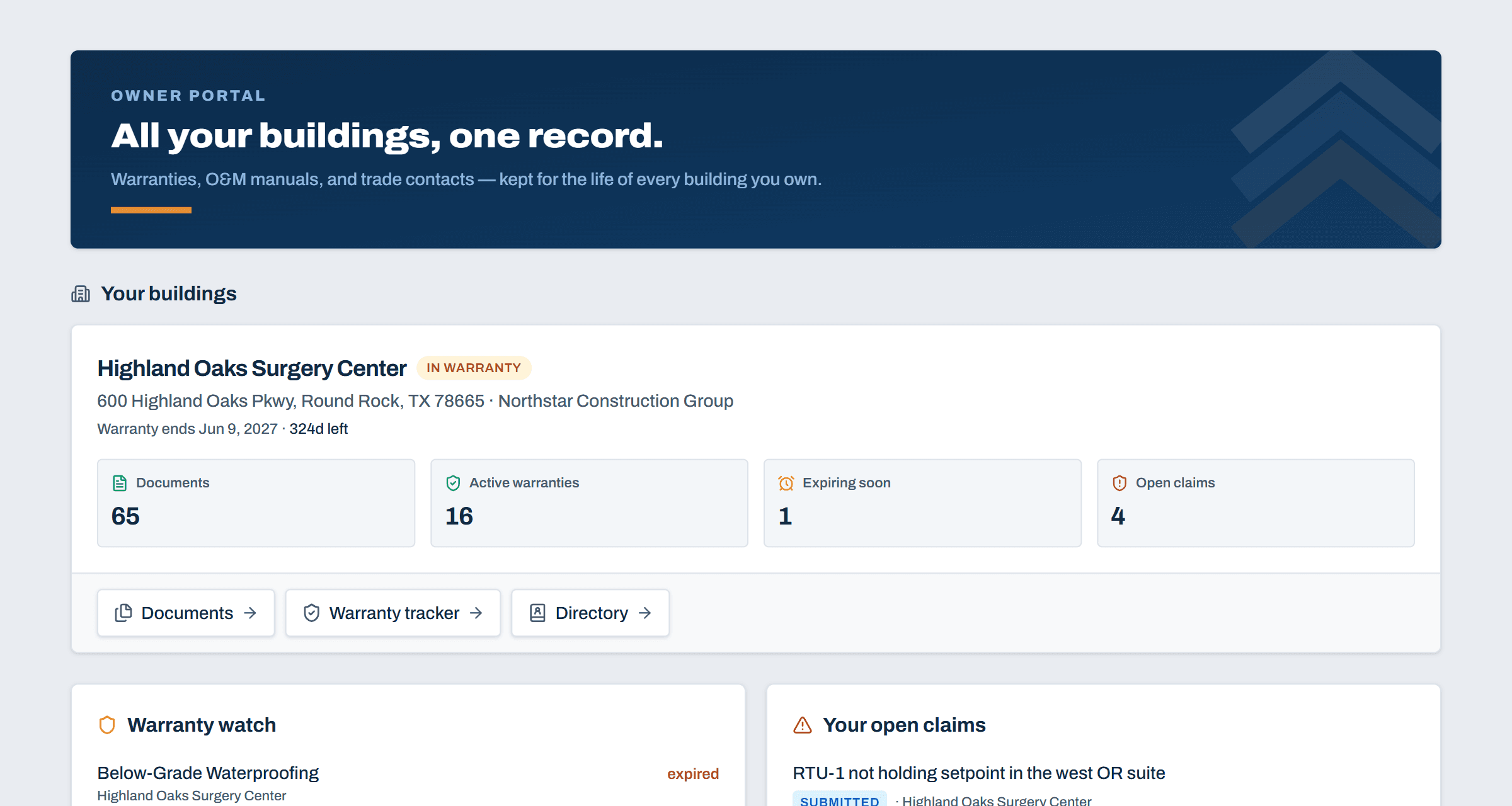
The owner dashboard: every building you own, one permanent record.
The closeout package
Find Any Document in Seconds
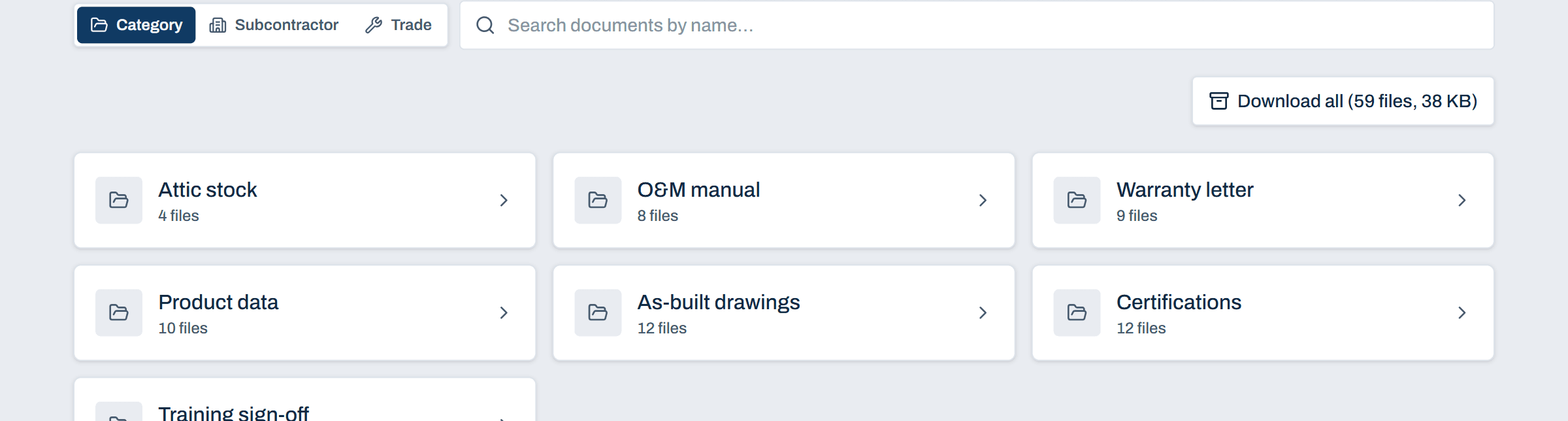
The classic handover is three binders and a USB stick that dies in a drawer. Your record lives in one place instead. Browse it by category, by subcontractor, or by trade, or just search: O&M manuals, as-builts, warranty letters, attic stock, training sign-offs.
You only ever see the approved, current version of each document. Never a draft, never revision three of five. Download one file or the whole package in a click.
And you can’t break any of it. You read, search, download, and export, while your contractor keeps the record current.
The handover
Approve the List, Then Confirm What Arrives
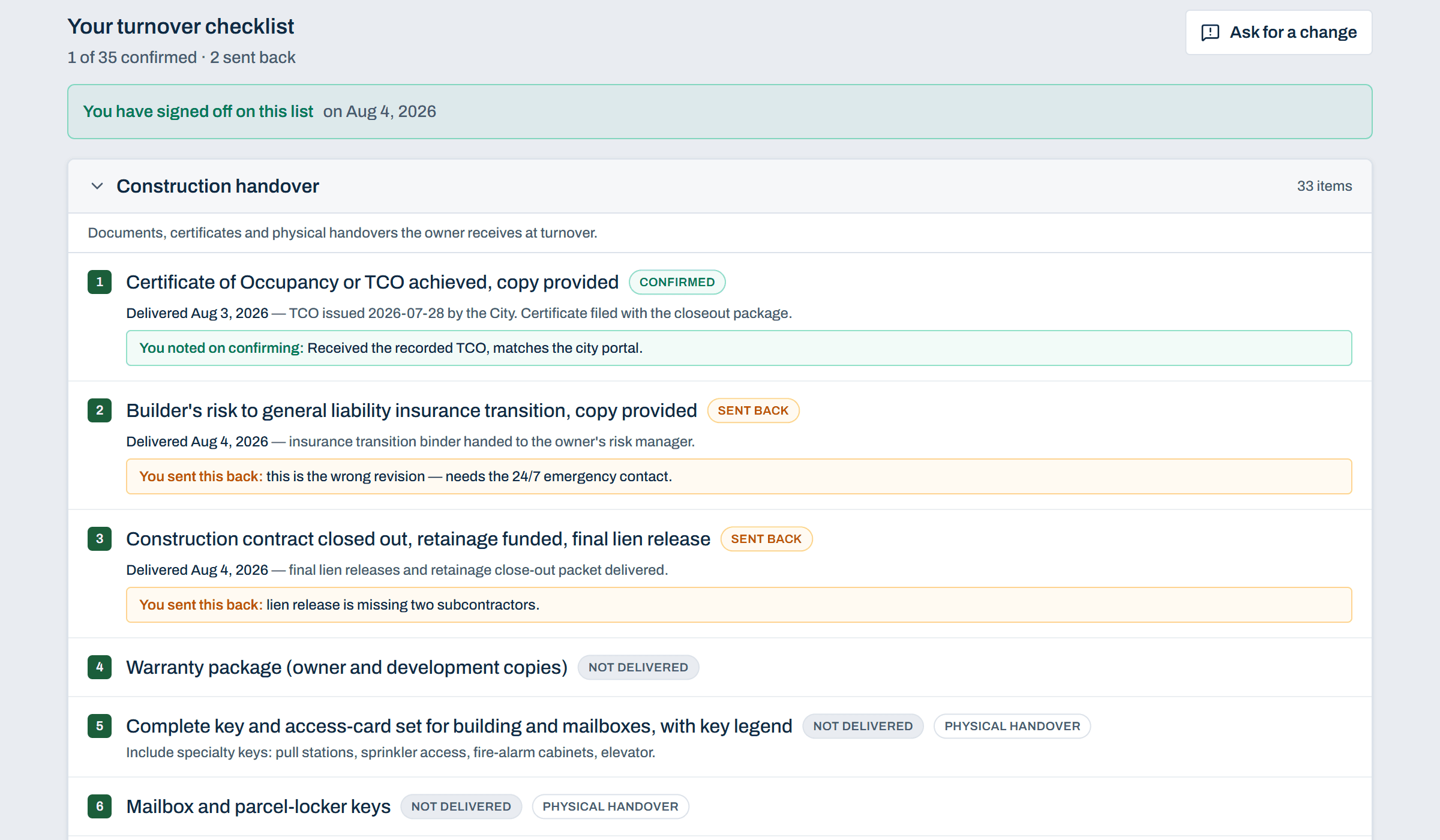
Before anything is collected, you see the closeout list itself: every document your contractor plans to hand over, who’s responsible for it, and what it is. The portal asks you one question. “Does this cover everything you expect?” You answer Looks complete or Something’s missing. If the list changes after you’ve answered, the portal flags it and invites another look. Every answer is recorded permanently, and a change request can’t be filed without a note saying what’s wrong.
Want it on paper? The list exports to PDF or Excel, and the spreadsheet has a column for your comments.
Your turnover checklist is separate. It tracks what’s handed to you directly: keys, training sessions, attic stock, the physical stuff. Confirm each item as it arrives, or send it back with a note if it’s wrong. Signing off on the list means one thing, and the portal says so in plain words: you’re agreeing on what’s owed at handover, not accepting anything as delivered.
If items sit waiting on you, your dashboard counts them, and the portal emails a reminder once a week, three times, then stops.
The warranty tracker
A Warranty Tracker That Knows Who to Call
Subcontractor workmanship warranties on one side, product warranties on the other. Each shows its expiration date and days remaining, and you can search by asset, manufacturer, model, or subcontractor. An expiring-soon watch runs across every building you own.
When something fails, you file the claim right on the warranty: what’s wrong, how urgent, your preferred window, up to six photos. It goes to the responsible subcontractor with your contractor copied, and the status walks a visible timeline from submitted to acknowledged, scheduled, and resolved. You can log your phone calls on the record, and if a resolution isn’t right, there’s a dispute lane.
You hear about every step by email: a receipt the moment you file, then a note when the claim is acknowledged, scheduled, and resolved.
One thing the tracker won’t do is let a claim be filed on an expired warranty. That’s what the countdown clocks are for. Nothing runs out quietly.

QR equipment pages
Put a Sticker on the Unit That Tells You Everything About It
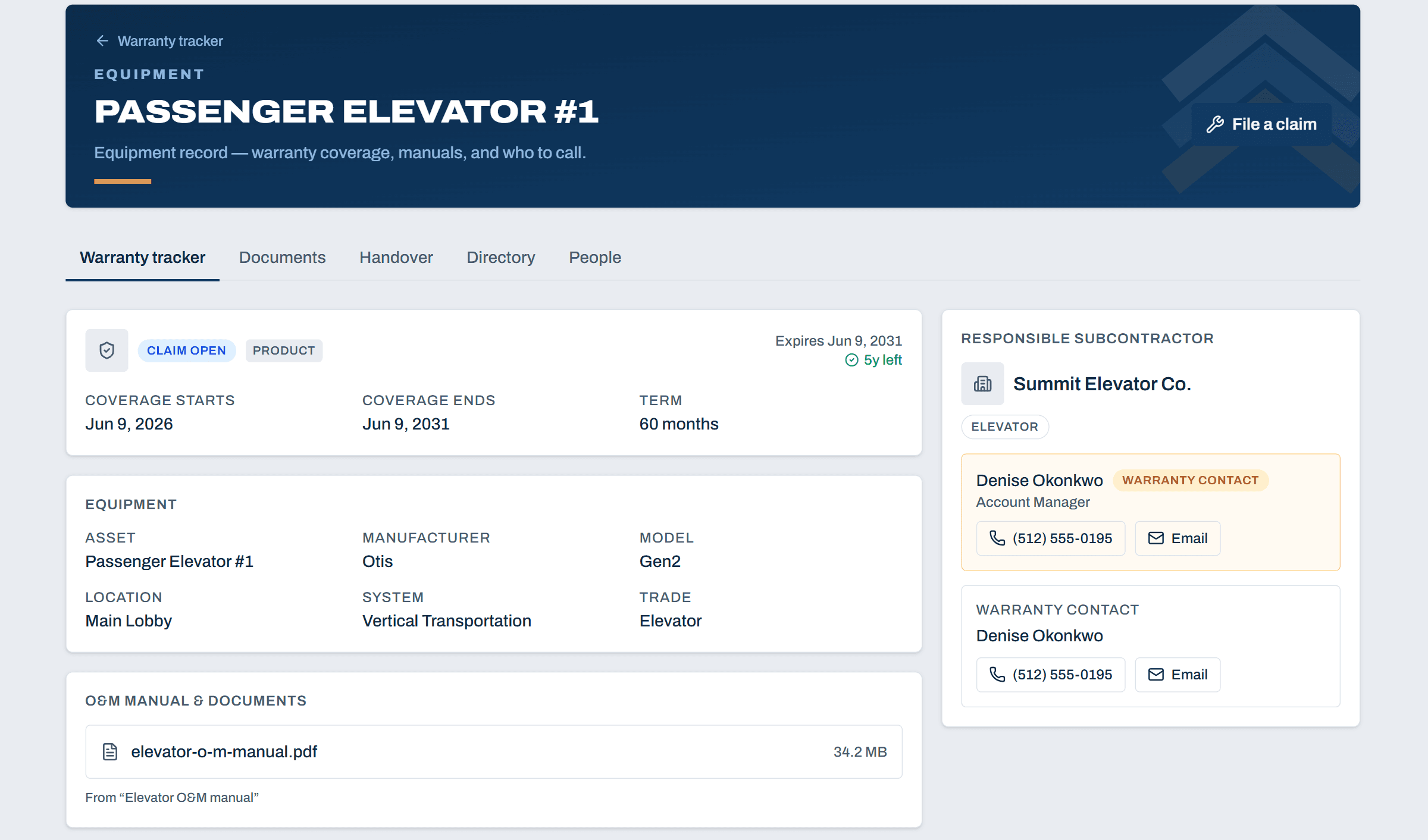
Every piece of covered equipment gets its own page: coverage dates, manufacturer, model, serial, location, the O&M manual, and the subcontractor responsible for it, down to a named warranty contact with a phone number.
Print the sheet of labels straight from your portal, one QR sticker per unit. Putting them on the equipment is your job, not your contractor’s, and it’s worth the afternoon. Lose one? Print another.
From then on, whoever you’ve given access, whether that’s your facilities tech, your managing agent, or a tenant, scans the sticker and lands on that unit’s page after signing in. The record is yours, not the internet’s. File a claim is one tap away with the right warranty already selected.
No more “who installed the RTU?” at 4 p.m. on a Friday.
Tenants & unit owners
Let Tenants In, on Your Terms
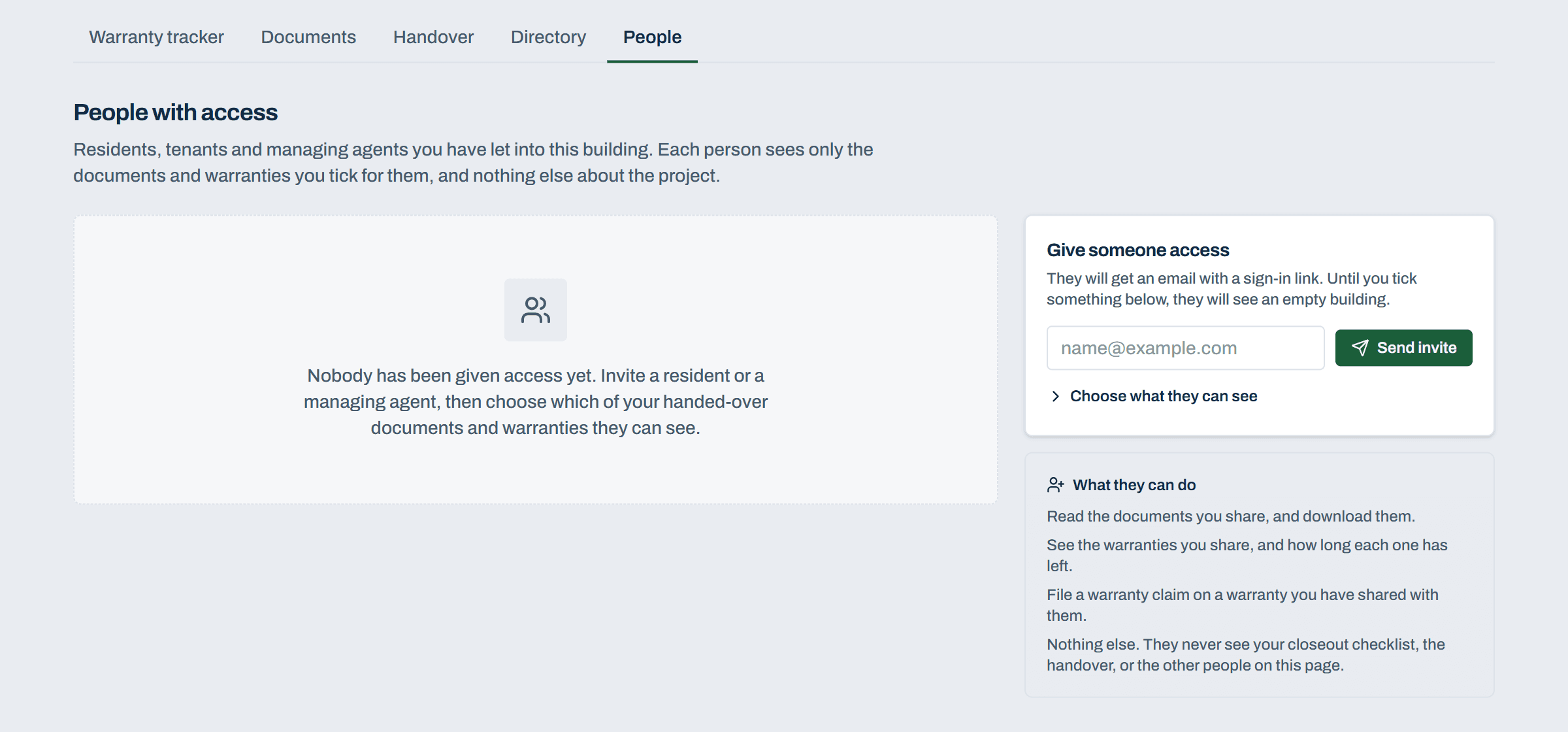
A building doesn’t stop with you. A condo hands units over, a commercial building fills with tenants, a managing agent runs the day-to-day. From the People with access screen, you invite them by email. You do, not your contractor.
You set up the units in your building, tick exactly which documents and warranties each unit can see, and the people you invite into a unit see what it carries. Nothing is shared by default: until a unit is ticked for something, everyone in it sees an empty building.
What they get is a scaled-down version of your portal. They can read and download the documents you share, watch the clock on the warranties you share, and file claims on those warranties. Their claims land in the same tracker, and you see every claim on your building, including theirs. Two units can share the same warranty without either seeing the other’s claims: every unit’s claims stay between that unit and you.
What they never see: your closeout checklist, the handover, or anyone else with access. Removing someone is one click, and it takes everything with it. Their access rides on yours, so it never outlives your own portal.
After year one
Built to Outlive the Job
The portal’s included for a year from Substantial Completion. When the warranty year ends there’s a 30-day grace window where your documents stay downloadable. After that the record locks, but it never disappears. Every building stays on your list, permanently.
Want to keep the full portal running past the first year? You can take it over. Talk to your contractor, or to us.
If your contractor brands their handover, the portal and its emails carry their logo and colors. Either way there’s nothing to install and no password to remember: access is by invitation, with a sign-in code to your email.
Questions Owners Ask
How do I get access?
Your general contractor invites you when they hand the project over. Closeout Compass is invitation-only, with passwordless email sign-in. If you want your contractor to use it, send them to the demo.
Can more than one person on my side have a login?
Yes. A building can have as many owner-side logins as you need. Ask your contractor to add your facilities lead, your board, or your property manager. Tenants you can add yourself, without asking anyone.
Can I add my tenants or unit owners myself?
Yes. From People with access, you set up units and tick exactly which documents and warranties each unit can see, then invite people into them by email. Nothing is shared by default, nobody sees outside their own units, and removing someone is one click.
What happens after the first year?
The portal’s included for a year from Substantial Completion. After the warranty ends there’s a 30-day grace window where documents stay downloadable. Then the record locks, but it never disappears from your list. To keep the full portal running, you can take it over. Talk to your contractor, or to us.
Can I upload my own documents?
No, and that’s deliberate. The record is your contractor’s handover. You read, search, download, and export it, so it stays exactly what was handed over. The one thing you upload is photos on a warranty claim.
What if a warranty already expired?
The tracker refuses new claims on expired warranties. The countdown and the expiring-soon watch exist so nothing runs out quietly. Expired warranties stay visible on the record, marked as expired.
Demo the Owner View for Yourself.
Open a demo and click into the owner portal, seeded like a real building: documents, warranties, and claims.